
How to Save Instagram Posts & Reels to Notion
Updated
Instagram is a river of Reels, recipes, tips and inspiration that scrolls past and never comes back. A save into Instagram's own folder is a dead end. This guide shows how to save an Instagram post or Reel to Notion in one click — and how Clipno's newest feature can transcribe a Reel's video and add an AI summary.
Short answer
To save an Instagram post to Notion, install the free Clipno extension for Chrome or Edge, open the post or Reel on instagram.com, and click the Clipno icon. The post — caption, author, link and media — lands in your Notion database in one click. New: if it's a Reel or video, tick Save transcript and Generate AI summary before saving, and Clipno writes the video's transcript and an AI summary into the same Notion page.
Instagram saves are a folder you never open again
You save a Reel with a great recipe or a sharp bit of advice, sure you'll come back to it. You never do — it sits in an Instagram collection with no notes, no tags and no way to search what was actually in it. The good stuff might as well not exist.
Saving the post into Notion changes that: it becomes a real page in a database you can search, tag and link to the rest of your notes. And because so much of Instagram is video now — Reels, tutorials, walkthroughs — Clipno can go further and turn that Reel into text you can read and search, plus an AI summary, right inside the same page.
Save an Instagram post to Notion in one click
Clipno reads the post straight from instagram.com and writes it into Notion as a clean page — with an option to transcribe and summarize a Reel. Setup takes about two minutes.
- 1
Install the Clipno extension
Add Clipno to Chrome or Edge from the Chrome Web Store. The free plan includes 50 saves per month — no credit card required.
- 2
Connect your Notion workspace
Click the Clipno icon, sign in, and authorize the Notion workspace and database you want to save into. Clipno can also create a ready-made clips database for you.
- 3
Open the post or Reel on instagram.com
Open the Instagram post, Reel or carousel you want to keep on instagram.com. Clipno reads it directly from the page, so anything you can open in your browser can be saved.
- 4
Click Clipno — and tick transcript & AI summary for Reels
Clipno captures the post's caption, author and source URL. If it's a Reel or video, tick Save transcript to turn the video into text and Generate AI summary for a short summary — then hit Save To Notion.
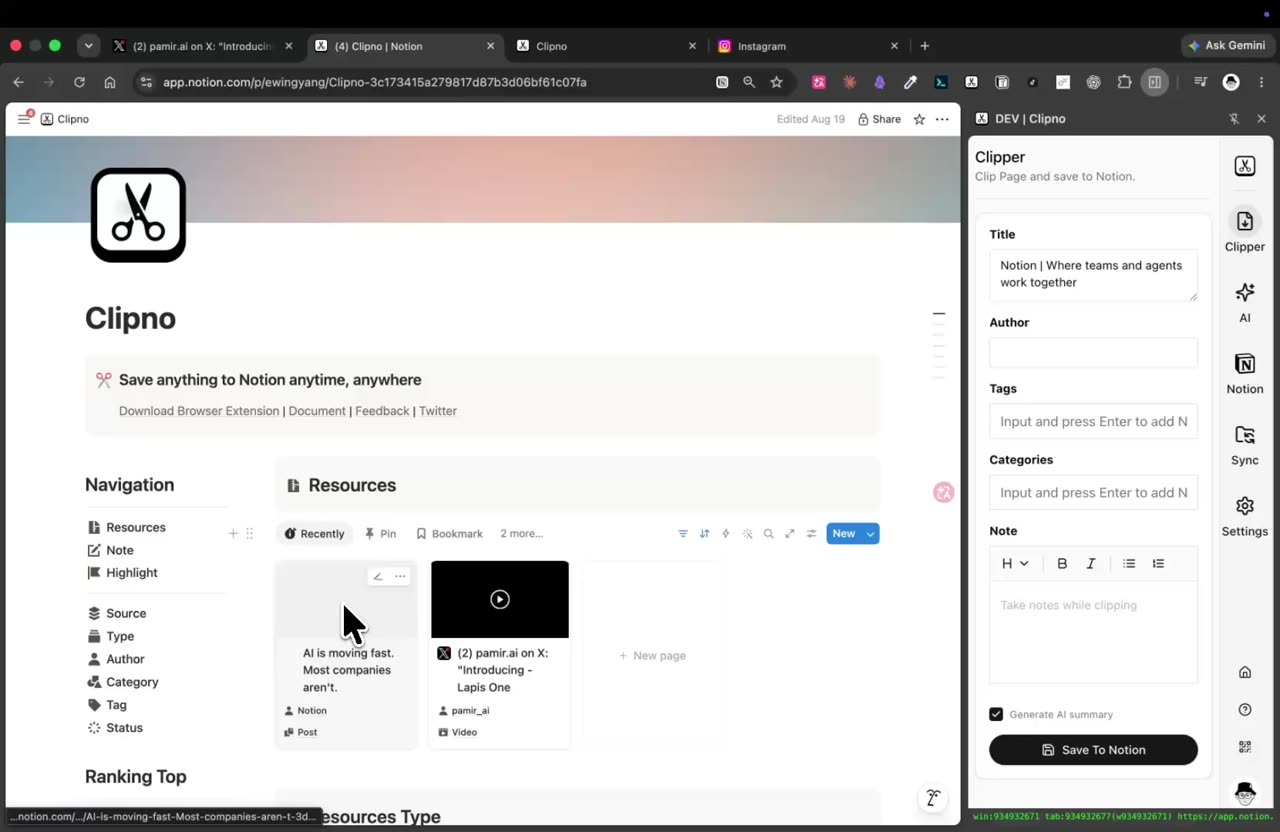
Saving an Instagram post to Notion with Clipno — a Reel is transcribed and AI-summarized into the same page. - 5
Find it in Notion — searchable, with the transcript
The post arrives as a new page in your database with the source URL in its properties. If you enabled them, the Reel's transcript and AI summary sit right there — so a tutorial you saved on impulse is now readable and searchable instead of lost in a collection.
Tips and common pitfalls
- Transcript + AI summary is the killer feature for Reels. Recipes, workouts and how-tos live in Reels you never rewatch. Tick Save transcript and Generate AI summary, and Clipno reads the video for you and drops the steps and a summary into Notion.
- Carousels and captions come through, not just the cover. The caption and post details are saved as a page, so the context isn't lost the way a screenshot loses it.
- Turn your Instagram saves into a real library. Instead of a Saved folder you never revisit, each clip is a searchable, taggable Notion page next to the rest of your notes.
- It reads text inside images and videos, not just the caption. Tick Extract text from images to OCR screenshots, carousels and infographics into searchable text, and Save transcript to turn a video into text — both are written into the same Notion page and can feed the AI summary.
- The same one-click flow covers other social posts. Clipno also clips Twitter/X, Facebook, Threads, TikTok, YouTube, Reddit and more — one clipper for everything you save from social.
- On iPhone or iPad, the Clipno iOS app and Shortcuts save Instagram links from the share sheet, though transcript and AI summary are features of the browser extension.
Frequently asked questions
- How do I save an Instagram post to Notion?
- Open the post or Reel on instagram.com and click the Clipno browser extension. The caption, author, link and media are written into your Notion database as a new page, no screenshots. If it's a Reel, you can also transcribe it and add an AI summary in the same click.
- Can Clipno save an Instagram Reel's video content?
- Clipno saves the post and its source URL, and — new — can transcribe a Reel's video into text and generate an AI summary that it writes into the Notion page. Tick Save transcript and Generate AI summary before saving.
- Does it save carousels and captions?
- Yes. The caption and post details are saved as a Notion page with the source link, so you keep the context, not just an image.
- Can I save my Instagram Saved collection to Notion?
- Open any saved post on instagram.com and clip it with Clipno. Each one becomes a searchable, taggable Notion page — a far more usable library than the native Saved folder.
- Can Clipno turn images or screenshots into text?
- Yes. Tick Extract text from images before saving and Clipno runs OCR on the post’s images — screenshots, carousels, infographics — and writes the recognized text into the Notion page, where it is searchable and can feed the AI summary.
- Is Clipno free?
- The free plan includes 50 saves per month with full feature access. Transcript and AI-summary generation have their own monthly free allowance; Pro raises the limits. Pro is $19.90 per year.
- Can I also save Twitter/X, Facebook or Threads posts to Notion?
- Yes — the same one-click flow works for Twitter/X, Facebook, Threads, Reddit, LinkedIn and many more sources.
Turn the best of Instagram into a searchable Notion library
Install Clipno free and save Instagram posts and Reels — with video transcripts and AI summaries — straight into Notion. Comparing clippers? See how Clipno stacks up against Save to Notion.