
Get started
Install Clipno and connect your Notion workspace
Get started
Install the extension
- Open the Chrome Web Store.
- Click Add to Chrome and follow the prompts to finish installation.
Pin Clipno
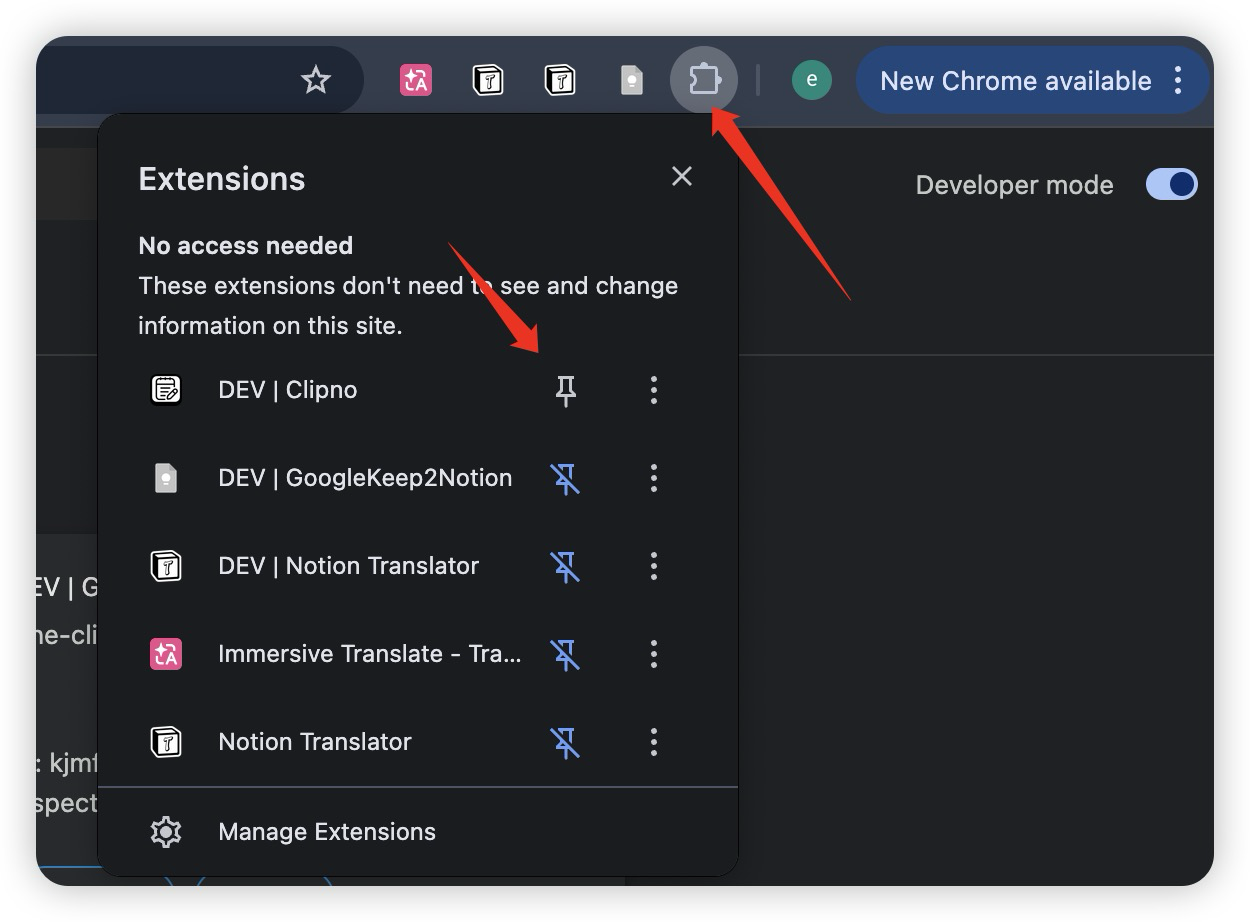
- Click the Extensions icon (puzzle piece) in the top-right corner of your browser.
- Find Clipno in the list and click the pin icon on the right.
- After that, you can open Clipno from the sidebar with one click.
Connect Notion
- After installation, click the Clipno icon in the toolbar to open the extension sidebar.
- You’ll be taken to the Clipno sign‑in page. You can sign in (recommended, so your account works across devices) or skip for now.
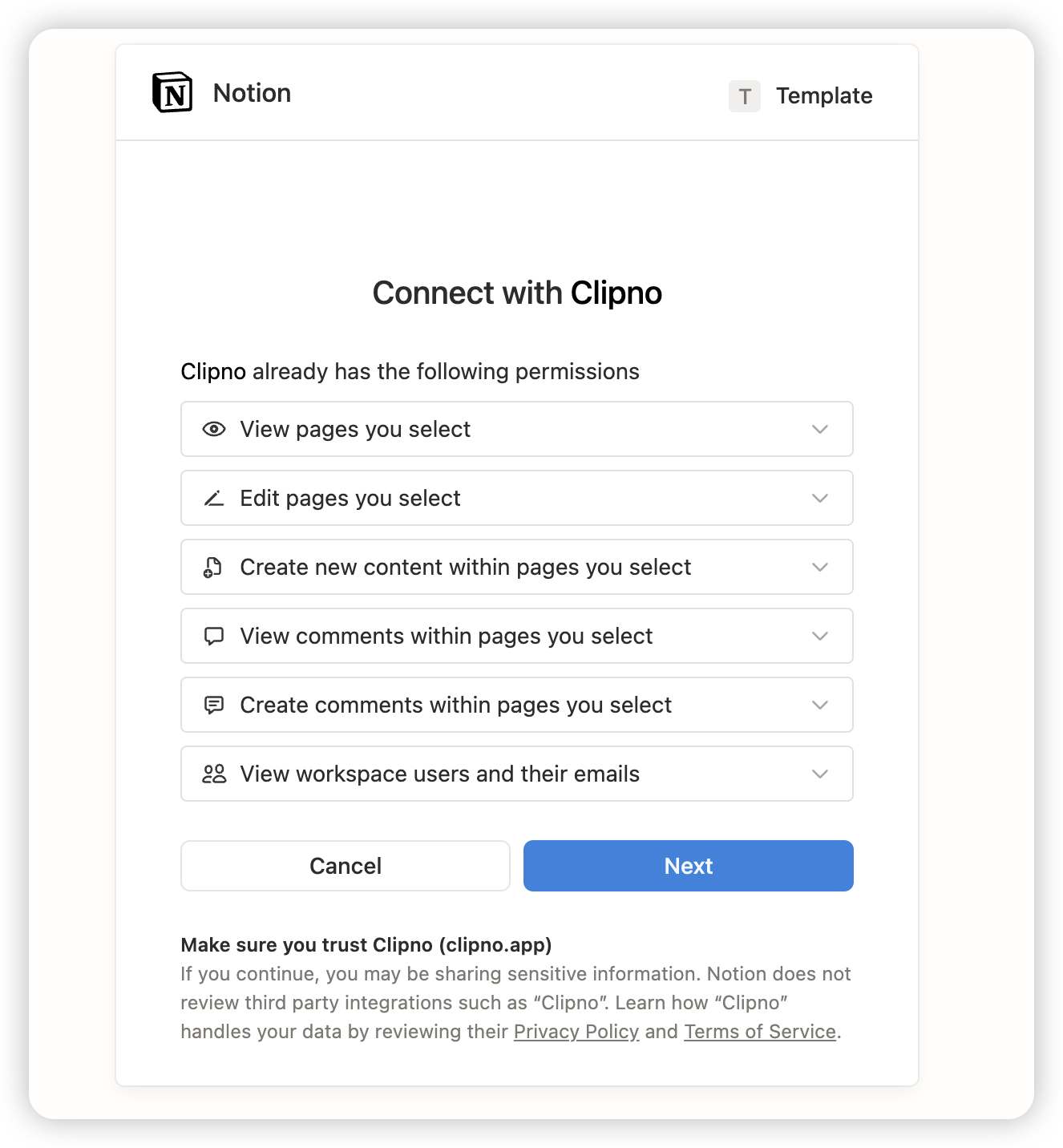
- After signing in, click Notion authorization in the extension, then click Next. Make sure you are authorizing the correct Notion workspace.
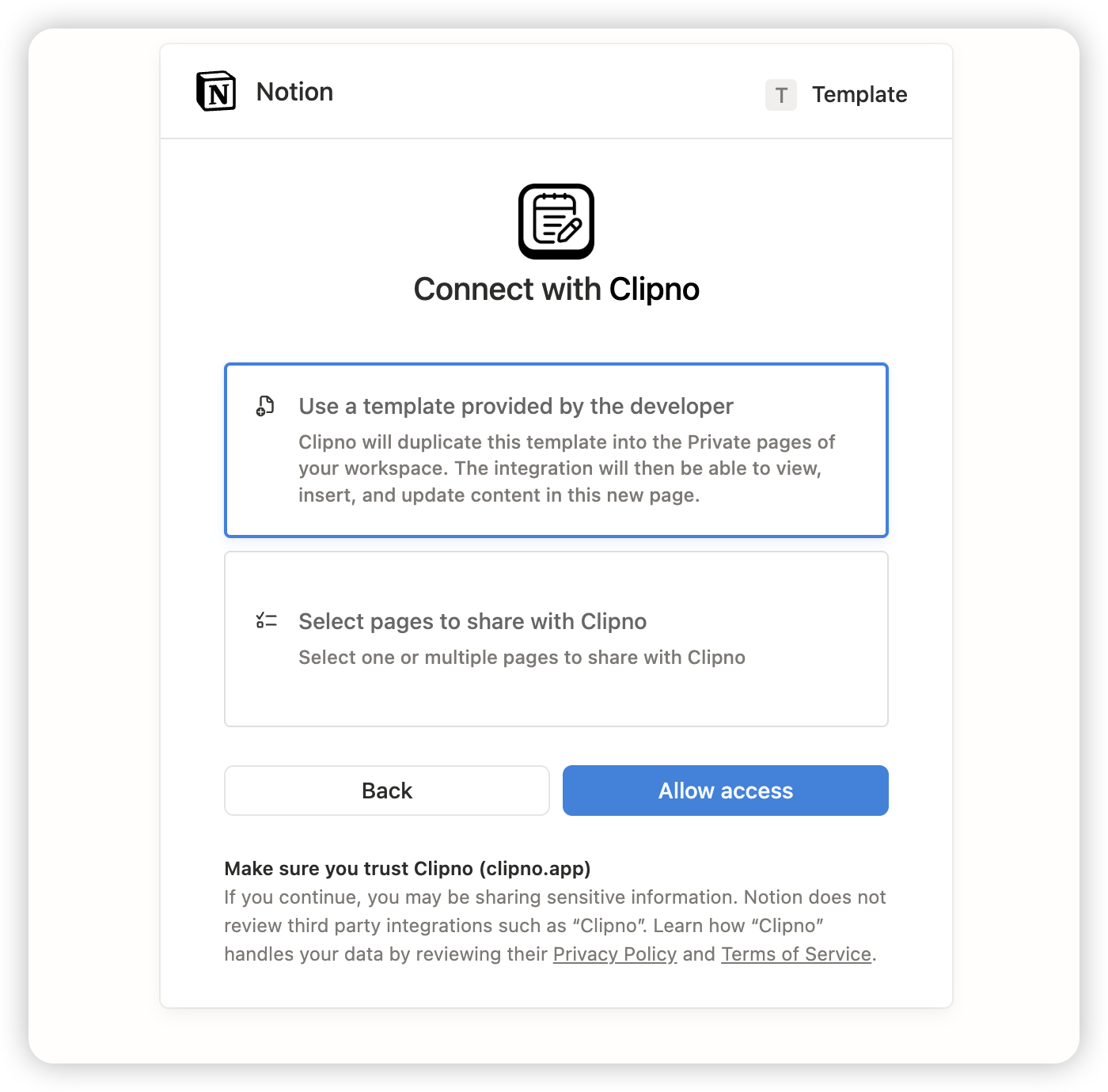
- On the authorization page, choose “Use developer template” (default option).
- When authorization succeeds, the extension will enter the main interface and you can start using Clipno.
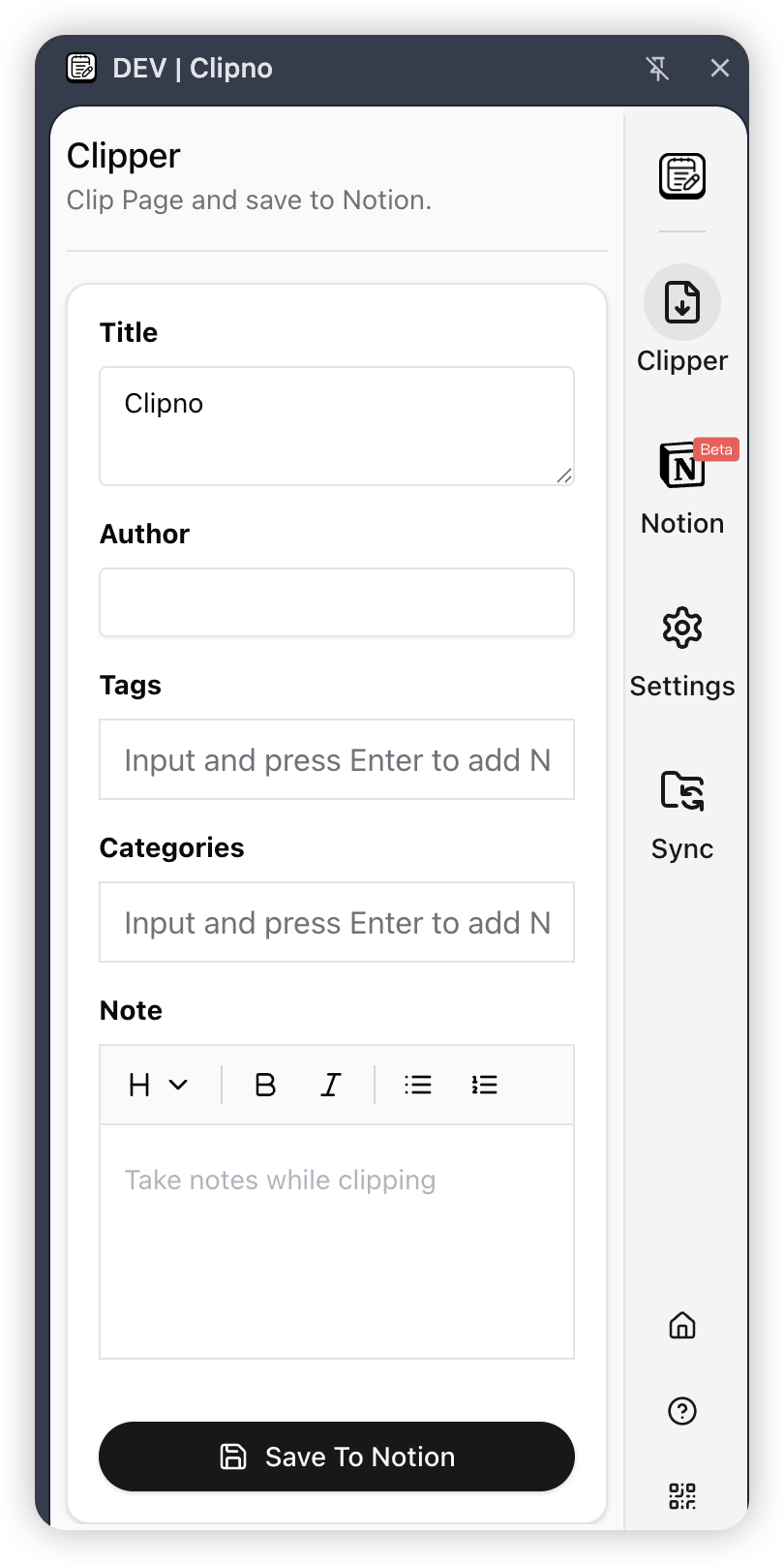
After authorization, you can change the authorized Notion page anytime from Notion in the extension sidebar.
Next steps
- Clip articles: open any web page, click the Clipno icon to open the sidebar, then use the Clipper menu to save it to Notion.
- Highlight notes: select text on a page and use “Save to Notion”; move your mouse over an existing highlight to view or add notes.