Highlights & notes
Highlight text on the web and take notes
Highlights & notes
On any web article, you can select text to create a highlight — without opening the extension sidebar first. The highlight will be saved to Notion and also shown as a highlight on the current page. You can then add notes on top of the highlight, or write notes for the whole article or video from the extension sidebar.
Create highlights
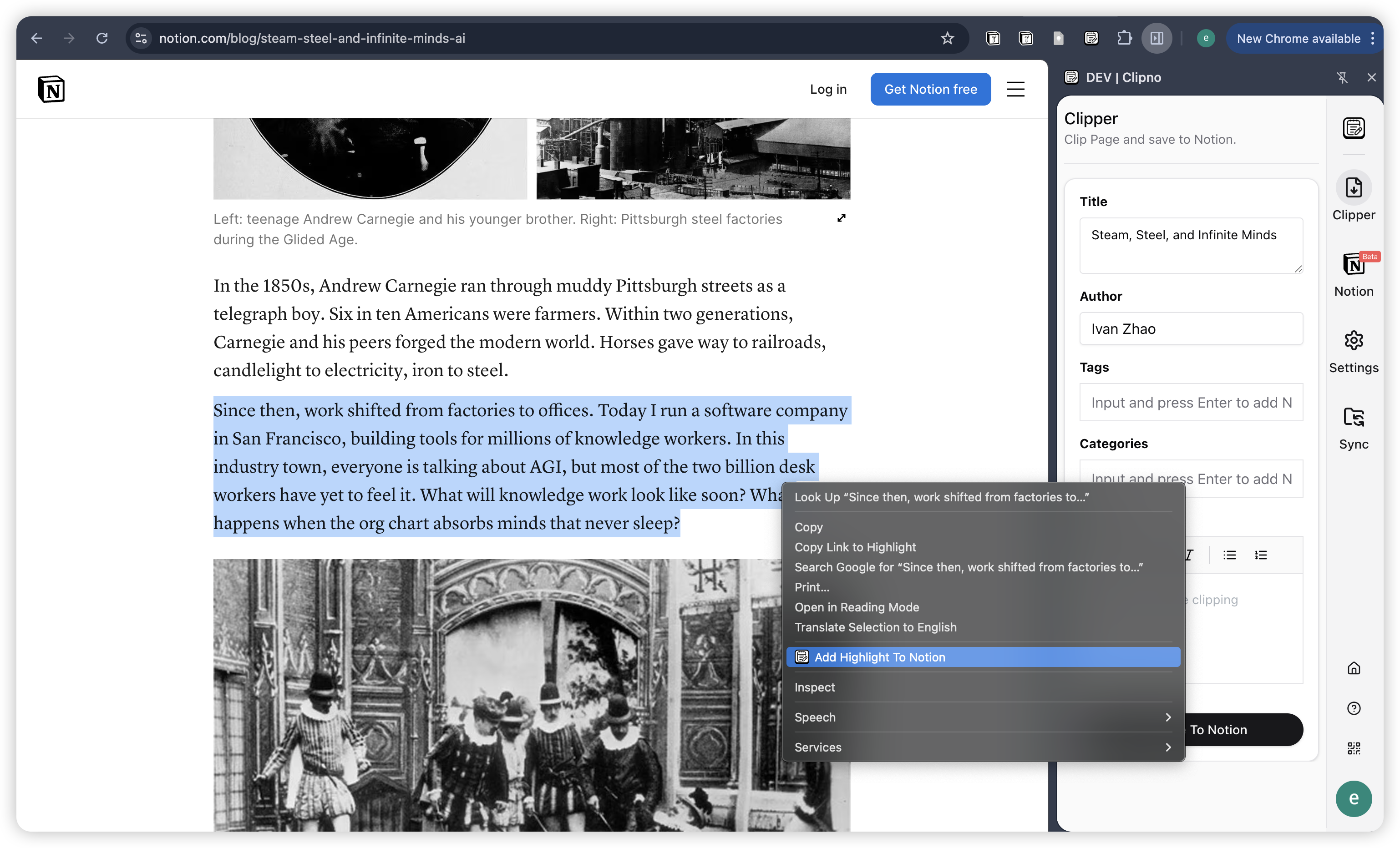
- Select the sentence or paragraph you want to save on a webpage.
- Right‑click and choose Add Highlight To Notion. The selection will be saved to Notion and highlighted on the page.
Take notes
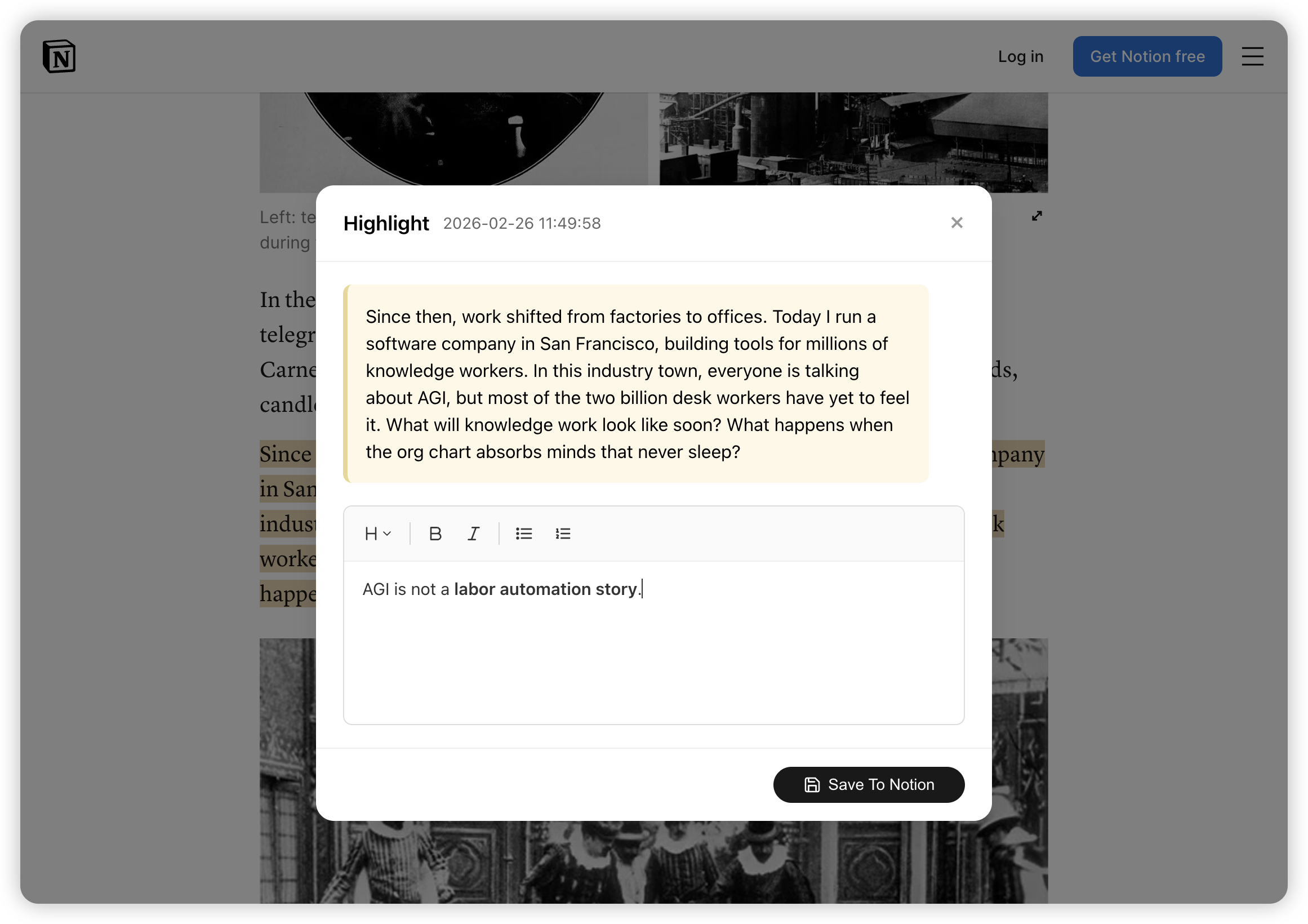
Option 1: Notes on a highlight
After you create a highlight, use the popup to add a note for this highlight (basic formatting supported), then click Save To Notion to save both the highlight and the note.
Option 2: Notes in the sidebar
Open the extension sidebar to write notes for the entire current article or video. These notes are linked to the page when saved to Notion.
How it looks
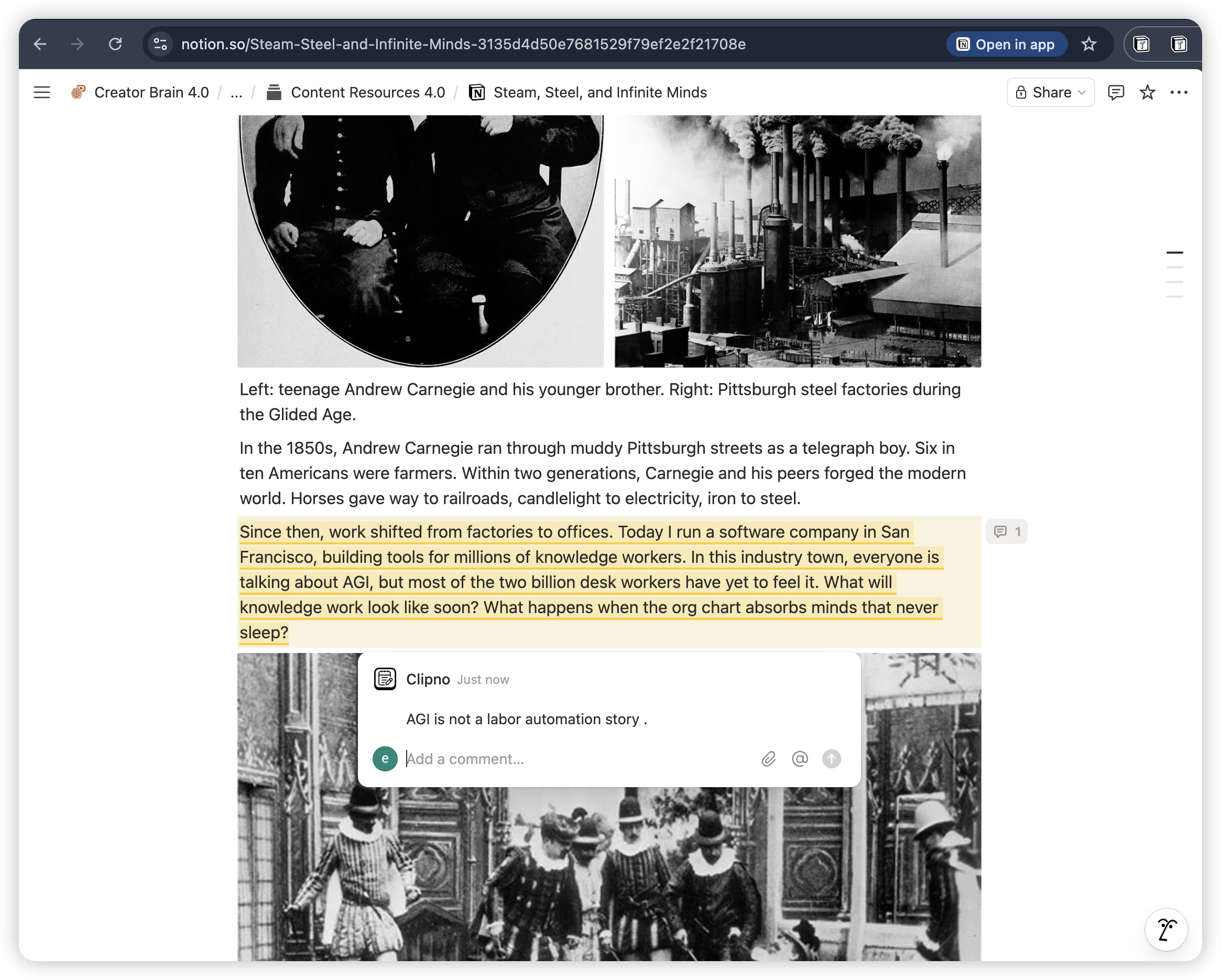
Highlights and notes appear in the Notion resource database you authorized. On the web page, highlights stay visible — hover over a highlight to view or add more notes.